







Skip to main content
Search
In some cases, it can be helpful to setup the Huawei B525 RBI router to connect only to 4G towers (and not failback to 3G).
To complete this, follow the below steps:
- Connect to your router and navigate to http://192.168.8.1 in your web browser
- In the navigation menu, click “Settings”
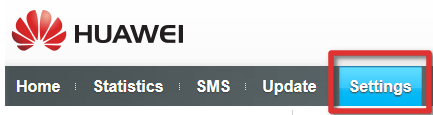
- If you are prompted for a username and password, try the default admin/admin – if this doesn’t work, please contact us.
- On the left, under “Dial-up”, click “Network Settings”
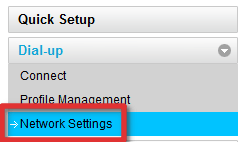
- Under the “Network” heading, change the “Preferred mode” to “4G only”
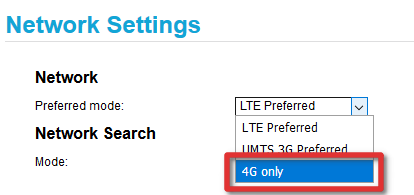
- Click “Apply”

- Restart your router, your router will now only connect to 4G towers.






B525 WILL NOT ACCEPT PASSWORD WHEN CONNECTED, KEEPS SAYING WRONG PASSWORD
Hi Steve, if you are a customer of Vetta I’d suggest getting in touch with our support team. If however, you’re with another ISP, please get in touch with them to determine what password may be set.